
Transferring Stock
Viewing Transfer Records
The page displays a table of stock transfers within a selected date range.
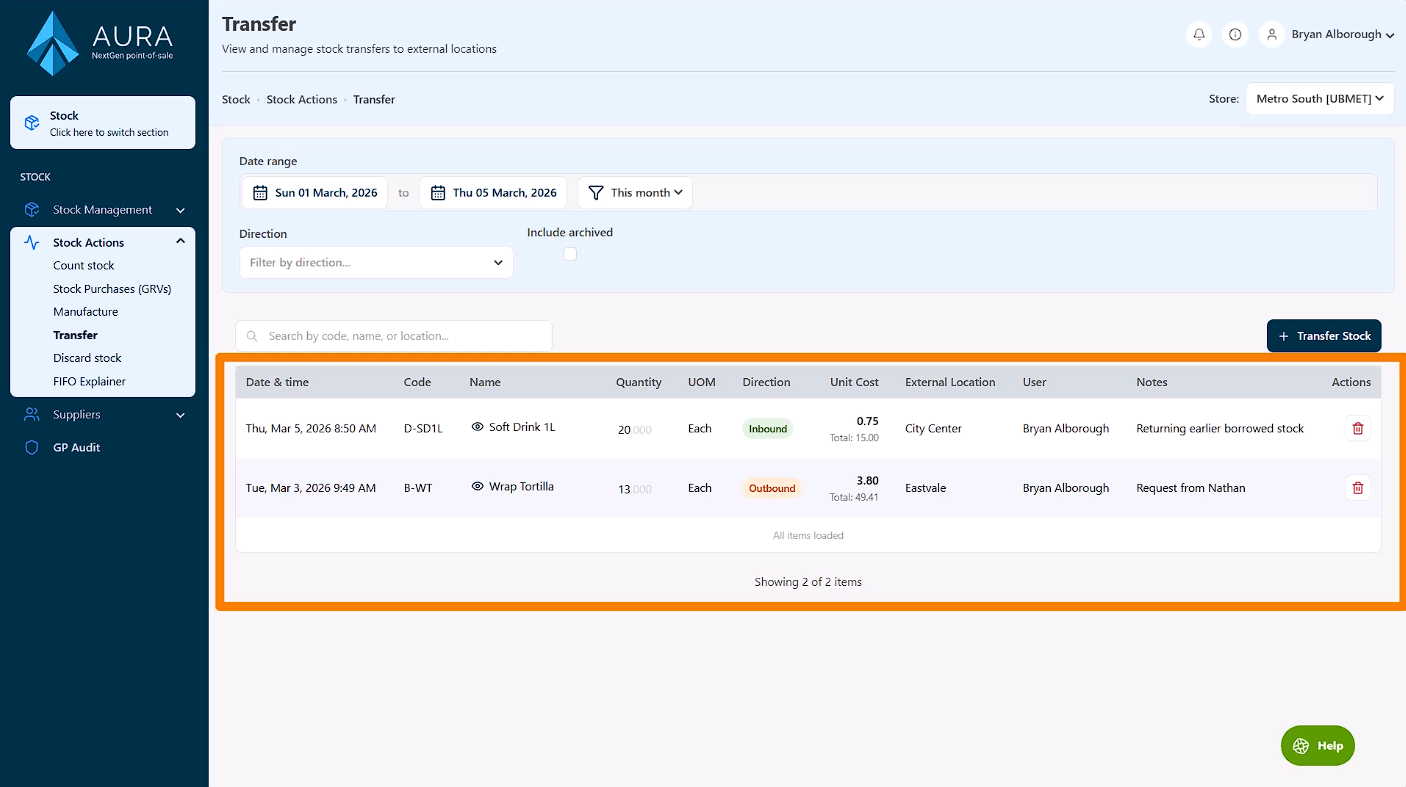
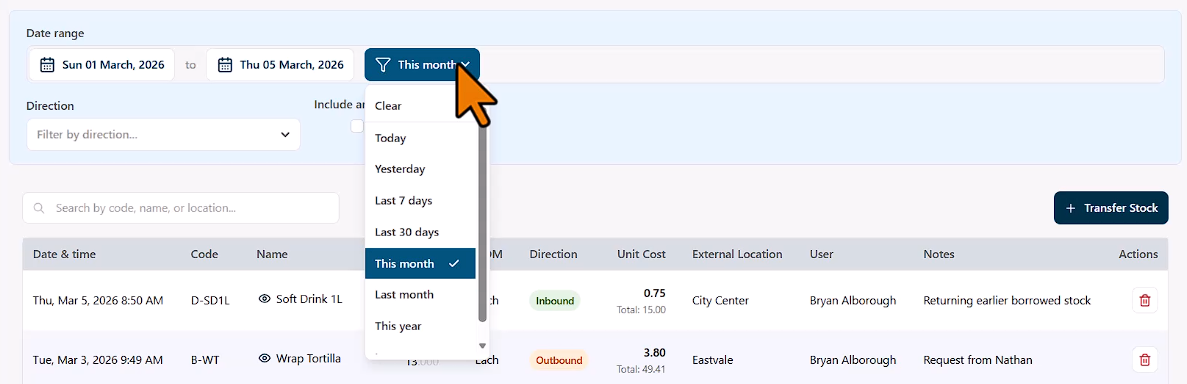
You can adjust the period by setting specific start and end dates, or by selecting from one of the available Quick Ranges.
Recording a Stock Transfer
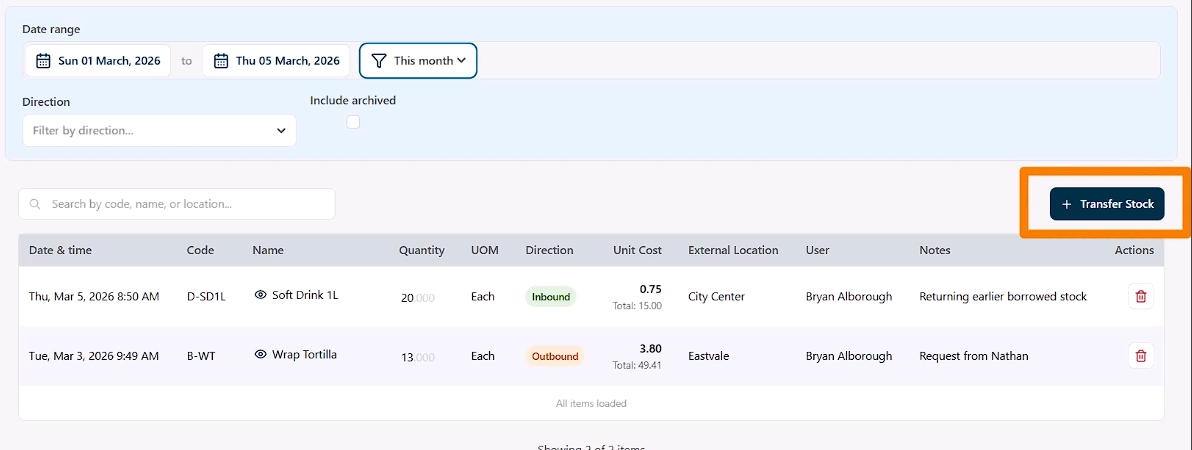
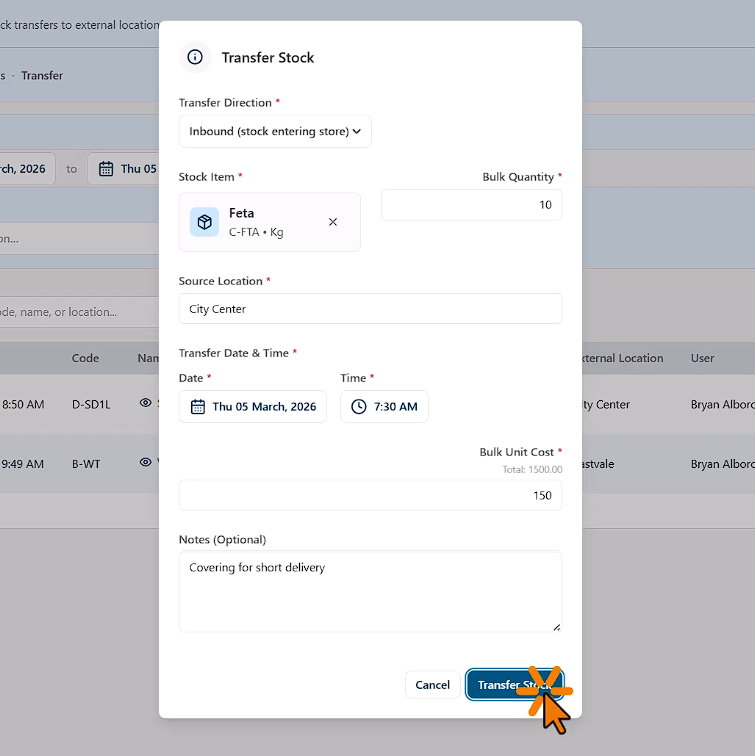
To log a new transfer, click Transfer Stock.
When capturing a transfer, the following information is recorded:
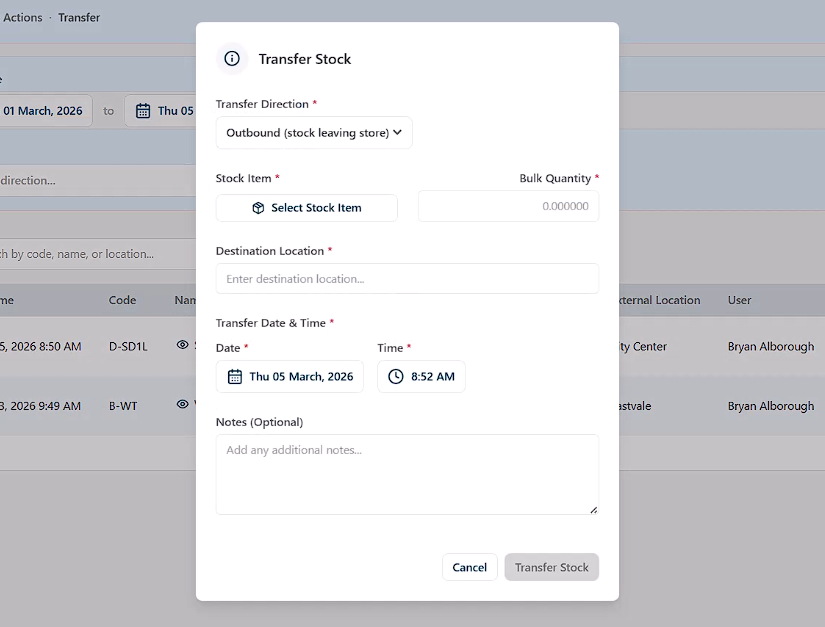
Transfer Direction
Choose the direction of the transfer:
- Inbound – Your store is receiving stock from another location.
- Outbound – Your store is sending stock to another location.
Stock Item
Search for and select the item being transferred. For example, Feta Cheese.
Quantity
Enter the quantity of stock being moved.
Other Store or Location
Type the name of the store or location involved in the transfer.
Unit Cost
Confirm the unit cost of the item. Entering the correct cost is important for maintaining accurate financial reporting.
If stock is being borrowed from another store, the cost should match the amount that store originally paid for the item.
Date and Time
Specify the exact date and time when the transfer took place.
Notes
You can add an optional note explaining the reason for the transfer, such as short delivery from a supplier.
Once all details are captured, click Transfer Stock to post the transfer.
Why Accurate Transfers Matter
Transfers directly affect inventory balances, variance reporting, and profitability analysis. If transfers are not recorded correctly, stock reports may show inaccurate quantities or unexplained stock movements.
Maintaining accurate transfer records ensures that inventory remains reliable across all stores.